- Prevent accidental data leaks: Mistakes like sending an email to the wrong person or sharing a file publicly by accident can lead to data breaches. DLP policies automatically catch these errors before they happen, protecting sensitive data from being exposed.
- Maintain consistent data security: DLP works across a range of services and platforms, ensuring that no matter where your data is stored or shared, it’s consistently protected. This provides an organization-wide approach to data security without leaving gaps.
- Low effect on productivity: One of the strengths of DLP is that it runs quietly in the background without disrupting users’ workflows. If sensitive data is detected, users receive warnings or alerts, allowing them to correct their actions without slowing down their work.
- Tailored data security: DLP policies can be customized to fit the unique needs of your organization. Whether you need to protect financial data, internal communications, or intellectual property, policies can be created to align with your business priorities and ensure sensitive data is handled appropriately.
- Adaptive Protection in DLP: Adaptive Protection in Microsoft Purview strengthens DLP by dynamically adjusting policies based on user risk levels, as identified through Microsoft Purview Insider Risk Management. When risky behaviors are detected, stricter DLP policies can be automatically applied to higher-risk users, ensuring better protection without over-restricting others. Adaptive Protection policies can be configured manually or automatically generated through quick setup, ensuring your organization’s data security adapts to changing risks in real time.
Category: Uncategorized
-
Why use Microsoft Purview DLP?
-
Data loss prevention overview
In any organization, protecting sensitive data from accidental exposure or sharing is essential. This data could include financial records, personal information, or internal business details. Losing control over this data can lead to serious consequences. Microsoft Purview Data Loss Prevention (DLP) helps address this by identifying, monitoring, and safeguarding sensitive information across your organization’s digital environment.
What is Microsoft Purview DLP?
Microsoft Purview Data Loss Prevention (DLP) is a tool that helps prevent accidental sharing of sensitive information by applying policies across various digital environments. These policies detect and respond to specific types of data, such as credit card numbers or personal identification details, ensuring that sensitive information is protected and managed effectively.
-
Govern your data
Governing data is essential for managing information throughout its lifecycle, ensuring compliance, and minimizing risk. Effective governance involves retaining important data only as long as needed and securely deleting it when no longer required. This process helps organizations meet legal standards and reduces the risk associated with storing unnecessary data. To support these efforts, Microsoft Purview provides tools like data lifecycle management and records management. These tools automate retention, manage records, and streamline deletion, helping organizations maintain compliance and protect sensitive information.
Microsoft Purview Data Lifecycle Management
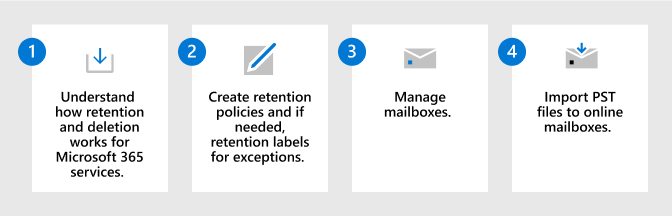
Microsoft Purview Data Lifecycle Management helps manage the lifecycle of content by applying retention and deletion policies to ensure compliance. This process applies to general data, whether stored in mailboxes, SharePoint, or other workloads across Microsoft 365. Here’s a framework for managing your data with data lifecycle management:
- Understand how retention and deletion work for Microsoft 365 services: Before you can manage your data lifecycle, it’s essential to understand how retention and deletion function within the Microsoft 365 ecosystem. Each service, from Exchange mailboxes to SharePoint, might have different retention needs depending on how data is stored and shared.
- Create retention policies and, if needed, retention labels for exceptions: Retention policies allow you to control how long data is kept and when it’s deleted. In cases where more granularity is needed, retention labels provide flexibility by applying unique retention settings to specific content.
- Manage mailboxes: Mailboxes are a critical source of information. Use data lifecycle management policies to apply retention settings that archive or delete mailboxes when necessary. This process ensures that obsolete data doesn’t take up space and is securely removed when no longer needed.
- Import PST files to online mailboxes: By importing PST files into online mailboxes, you ensure that data is governed and protected under Microsoft 365 retention policies, reducing the risk of unmanaged data.
-
Prevent data loss
As organizations manage sensitive data across various platforms, preventing unauthorized access, sharing, or accidental leaks becomes critical. Microsoft Purview Data Loss Prevention (DLP) and endpoint DLP offer comprehensive solutions for safeguarding your sensitive information across devices and applications. This approach helps ensure that sensitive data stays secure, even when users interact with external systems or cloud services.
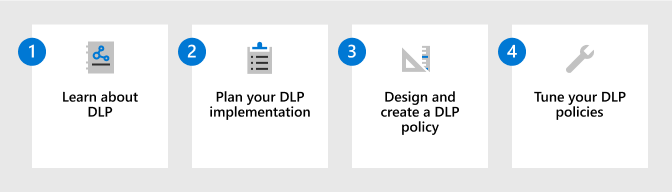
Here’s a framework for effectively preventing data loss:
- Learn about DLP: The first step is understanding how DLP works to safeguard sensitive data. DLP policies are designed to detect when sensitive information, such as personal health data or credit card numbers, is being shared inappropriately, ensuring it’s automatically blocked or restricted when necessary. This foundational knowledge helps you apply the correct policies to prevent data loss across platforms like Exchange, SharePoint, and Teams, ensuring no gaps in coverage.
- Plan your DLP implementation: Once you understand DLP, the next step is planning your implementation. Identify where sensitive data is stored, how it moves across your organization, and which areas need the most protection. Planning in advance allows you to target high-risk areas and apply policies strategically. By aligning DLP policies with the data’s flow, you can ensure effective monitoring without overburdening your users or systems.
- Design and create a DLP policy: With a plan in place, you can now design your DLP policies. These policies allow you to define specific rules that identify, track, and protect sensitive data. For instance, you can configure a policy to block the sharing of sensitive customer data outside the organization. A well-designed policy ensures that sensitive information is automatically protected while enabling employees to work without constant interruptions.
- Tune your DLP policies: Finally, fine-tuning your DLP policies is essential to maintain a balance between security and usability. Review reports from your DLP implementation to identify false positives or areas where adjustments are needed. This tuning process helps you refine your policies to ensure they’re effective without being overly restrictive, allowing your users to remain productive while sensitive data remains secure.
-
How sensitivity labels protect your data
Sensitivity labels play a vital role in safeguarding sensitive content, offering multiple layers of protection. Once labels are defined and applied, they automatically enforce the necessary security measures to ensure that data remains protected no matter where it goes.
- Encryption: Sensitivity labels can automatically apply encryption to sensitive files and emails, ensuring that only authorized users with decryption keys can access the content. This feature protects data even when stored or shared externally, maintaining its confidentiality and preventing unauthorized access.
- Access control: You can use labels to restrict access to sensitive data, controlling who can view, edit, or share specific content. For example, a file labeled as “Confidential” might only be accessible to a select group of employees. This measure ensures that the right people have access to the right information and limits the risk of unauthorized access.
- Visual markings: Sensitivity labels can add watermarks, headers, or footers to documents, providing a visible indication of the content’s sensitivity level. This feature helps users quickly identify how to handle documents, reducing the risk of unintentional misuse.
Securing emails with Microsoft Purview Message Encryption
Emails often contain sensitive information, making email security a crucial component of data protection. Microsoft Purview Message Encryption enables organizations to protect sensitive emails, even when sent outside the organization.
- Automatic encryption: Policies can be set to automatically encrypt emails that contain sensitive information, ensuring they remain secure when shared with internal or external recipients.
- External access: Recipients outside your organization can access encrypted emails using a secure one-time passcode or a Microsoft account, ensuring that external partners can collaborate securely while maintaining the confidentiality of sensitive content.
-
Protect your data
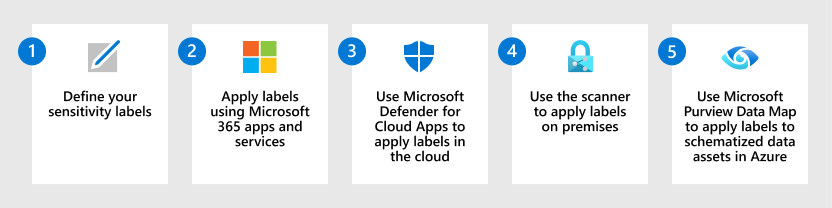
After you identify and classify your sensitive data, the next step is ensuring that this data remains secure across all environments. Protecting data isn’t just about meeting compliance requirements. It’s essential for reducing the risk of breaches and keeping sensitive information safe throughout its lifecycle. Several tools within the Microsoft ecosystem help you apply protections like encryption, access controls, and monitoring, ensuring that the right security is applied to each data type and location. Here’s a framework for protecting sensitive data effectively:
- Define your sensitivity labels: Start by defining sensitivity labels that suit your organization’s specific needs. These labels can be customized to reflect various data classifications, such as confidential, internal, or public, based on the type of content and the level of protection required. Sensitivity labels ensure that all content, from highly confidential data to general information, is handled according to the organization’s security policies.
- Apply labels using Microsoft 365 apps and services: Once sensitivity labels are created, they can be automatically or manually applied across Microsoft 365 applications, such as Word, Excel, and SharePoint, ensuring that the proper protections are in place. Users can work confidently within their day-to-day tools, knowing that the necessary safeguards, such as encryption or access restrictions, are being enforced. This consistency helps maintain security across all shared or stored content.
- Use Microsoft Defender for Cloud Apps to apply labels in the cloud: Sensitive data often resides beyond Microsoft 365, stored in non-Microsoft cloud services or SaaS applications. With Microsoft Defender for Cloud Apps, you can extend your sensitivity labels to these environments, protecting data across cloud platforms like Dropbox or Salesforce. This capability ensures that sensitive information remains secure, even when it moves outside the immediate Microsoft ecosystem.
- Use the scanner to apply labels on-premises: For organizations managing data stored on-premises, the Microsoft Purview Information Protection scanner helps you discover, classify, and label sensitive data across file servers and repositories. By scanning on-premises environments and applying labels consistently, you ensure that sensitive information is as protected as data stored in the cloud or within Microsoft 365.
- Use Microsoft Purview Data Map to apply labels to schematized data assets in Azure: When dealing with structured data in cloud environments, Microsoft Purview Data Map allows you to apply sensitivity labels to schematized data assets in Azure. This approach helps organizations maintain a clear view of their data landscape and ensure that sensitive data in cloud databases or other structured formats is adequately protected.
-
Data classification concepts
Classification involves identifying and labeling content in your organization to better understand your data landscape.
Sensitive information types
Sensitive information types allow you to detect and label common types of sensitive data automatically. This helps ensure sensitive data is automatically identified and protected, reducing the risk of data breaches. Microsoft Purview provides over 300 built-in patterns, such as credit card numbers, Social Security Numbers, and other regulated data. These patterns are identified through regular expressions or functions. For organizations with unique needs, you can create custom sensitive information types to capture proprietary or specialized data.
Trainable classifiers
Trainable classifiers use artificial intelligence and machine learning to identify content specific to your organization, such as contracts or customer records, without relying solely on pattern matching. These classifiers reduce the risk of missing sensitive content that doesn’t fit standard patterns, offering more comprehensive protection.
Exact data match (EDM)
Exact data match (EDM) provides a highly accurate way to identify sensitive information by matching specific, predefined data values from a secure data source. This is especially useful when your organization deals with highly sensitive and structured data, like employee IDs or customer account numbers. EDM helps prevent false positives by precisely targeting specific data, rather than relying on general patterns or keywords.
-
Know your data
The first challenge many organizations face is understanding what kind of data they have and where it resides. Before you can protect sensitive data, you need full visibility into your environment. This process begins with identifying, classifying, and managing sensitive data. Here’s a general framework to help guide the process:
- Describe the categories of sensitive information you want to protect: Start by identifying the types of sensitive data in your organization, such as financial data, customer records, or intellectual property. Then, determine the level of protection each type requires.
- Discover and classify sensitive data: Using tools like sensitive information types and trainable classifiers, you can automatically discover and label sensitive data to ensure its security.
- View and manage your sensitive items: Once classified, sensitive data can be monitored and managed throughout its lifecycle using policies and centralized tools.
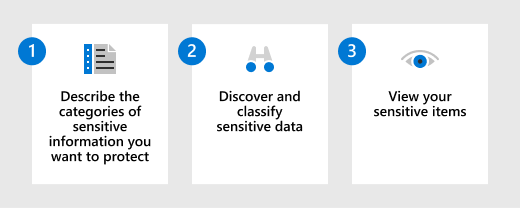
As you move through these steps, consider these questions to help refine your strategy:
- Who owns my data?
- What types of data do I have?
- Where is my data?
- Why is it a risk?
- What methods can I use to classify my data?
- Where can I classify my data?
- How can I see what happens to my data over its lifecycle?
Now that you understand the basic steps, let’s explore how Microsoft Purview enables data classification through its tools and policies. These concepts help you discover, protect, and manage sensitive data across your environment.
-
Microsoft 365 Copilot in OneDrive
Copilot in OneDrive is designed to transform how you interact with your files by streamlining file management and reducing time spent on file-related logistics, ultimately boosting your productivity and efficiency in the digital workspace.
- Extract information from multiple files in your OneDrive without even opening them.
- Compare the key differences between documents in just a single-click.
- Quickly summarize files in your OneDrive so that staying updated on important files doesn’t take you hours.
- Generate insights from your documents and jumpstart your work with the help of Copilot.
SharePoint
SharePoint is a cloud-based collaboration and content management platform designed for team-based and organization-wide collaboration. SharePoint supports the creation of team sites, communication sites, and shared workspaces that enable teams and organizations to securely store, organize, share, and manage content from any device—anytime, anywhere.
Key features:
- File sharing & storage: Securely store, manage, and share documents with your team.
- Team & communication Sites: Create spaces to collaborate, share updates, news, and resources across your organization with visually engaging pages.
- Real-time collaboration: Co-author documents and leave feedback directly in files.
- Microsoft 365 integration: Works seamlessly with Teams, Outlook, OneDrive, and Office apps.
- Search & organization: Quickly find people, files, and content using intelligent search, and keep information organized with customizable lists and document libraries for easy data tracking and file management.
- Automation & AI: Use Power Automate to streamline tasks, approval workflows, AI metadata tagging, and multilingual support.
- Mobile access: Access files and sites from anywhere with web and mobile support.
- Analytics & insights: Track site engagement and optimize performance with built-in analytics.
- Extensibility: Customize experiences using Copilot Studio, SharePoint Embedded, and custom agents.
- Permissions & security: Manage who can view or edit content with built-in privacy controls, access policies, and backup options.
-
Streamline content and collaboration with OneDrive and SharePoint
OneDrive and SharePoint are cloud-based services in Microsoft 365 that help organizations share and manage content, knowledge, and applications—empowering teamwork, streamlining information discovery, and enabling seamless collaboration across the organization. Together, they form the foundation of file storage and collaboration in Microsoft 365, enabling real-time co-authoring, secure sharing, version control, and easy access to files in apps like Word, Excel, PowerPoint, and Teams. Built on the same Microsoft 365 file storage platform, they deliver a consistent experience whether you’re working individually or as part of a team.
Let’s explore each of their key features and how Microsoft 365 Copilot can enhance their capabilities:
OneDrive
OneDrive is a cloud storage service, designed for individual file storage and sharing, allowing you to collaborate with others when needed. Securely store, sync, and access your important documents, photos, and files from virtually any device—anytime, anywhere.
Key features:
- Personal cloud storage: Securely store your files, photos, and documents in the cloud, so they’re protected and always accessible across your devices.
- Automatic backup: Back up important files from your desktop, including folders like Documents and Pictures. Automatically back up photos and videos from your phone and Xbox game captures to keep them safe and shareable.
- Access from anywhere: Access, view, and edit your files from any device—PC, phone, or tablet. Offline access ensures you can keep working without an internet connection.
- Real-time sync & updates: Any changes you make to a file are automatically synced across all devices, keeping your content up to date.
- Mobile scanning: Use the OneDrive mobile app to scan and digitize documents, receipts, and photos, storing them securely in the cloud.
- Photo & video organization: Enjoy smart photo features that help you relive memories through curated collections and rediscover moments stored in OneDrive.
- Easy file sharing: Share files and folders securely with coworkers, friends, or family, with control over viewing and editing access.
- Collaboration & co-authoring: Work together in real time on Office documents like Word, Excel, and PowerPoint directly from OneDrive.
- Version history & file recovery: Restore previous versions of files or recover deleted items easily within a set time window.
- Built-in security & privacy: Keep your content safe with enterprise-grade security, encryption, and features like multifactor authentication and ransomware detection.