Category: Uncategorized

  • Manage meeting settings

    Microsoft Teams is always working to provide educators and learners ways to personalize and optimize their live and collaborative meeting experiences. While educators can manage meeting settings before the call in the meeting invitation, they can also manage them during the live call.

    Within the meeting options, educators can:

    • Require attendees to wait in the lobby while educators prepare for the call
    • Prevent attendees from sharing their screens by setting who is a presenter
    • Control attendees’ use of microphones and cameras
    • Determine if attendees can use reactions
  • Ensure accessibility with live captioning in Teams meetings

    Teams is a centralized hub and real-time meeting space for online meetings and presentations. Live broadcasting and video features let presenters connect and collaborate with members and guests in real time. Additionally, accessibility features are available throughout Microsoft 365 and Microsoft products.

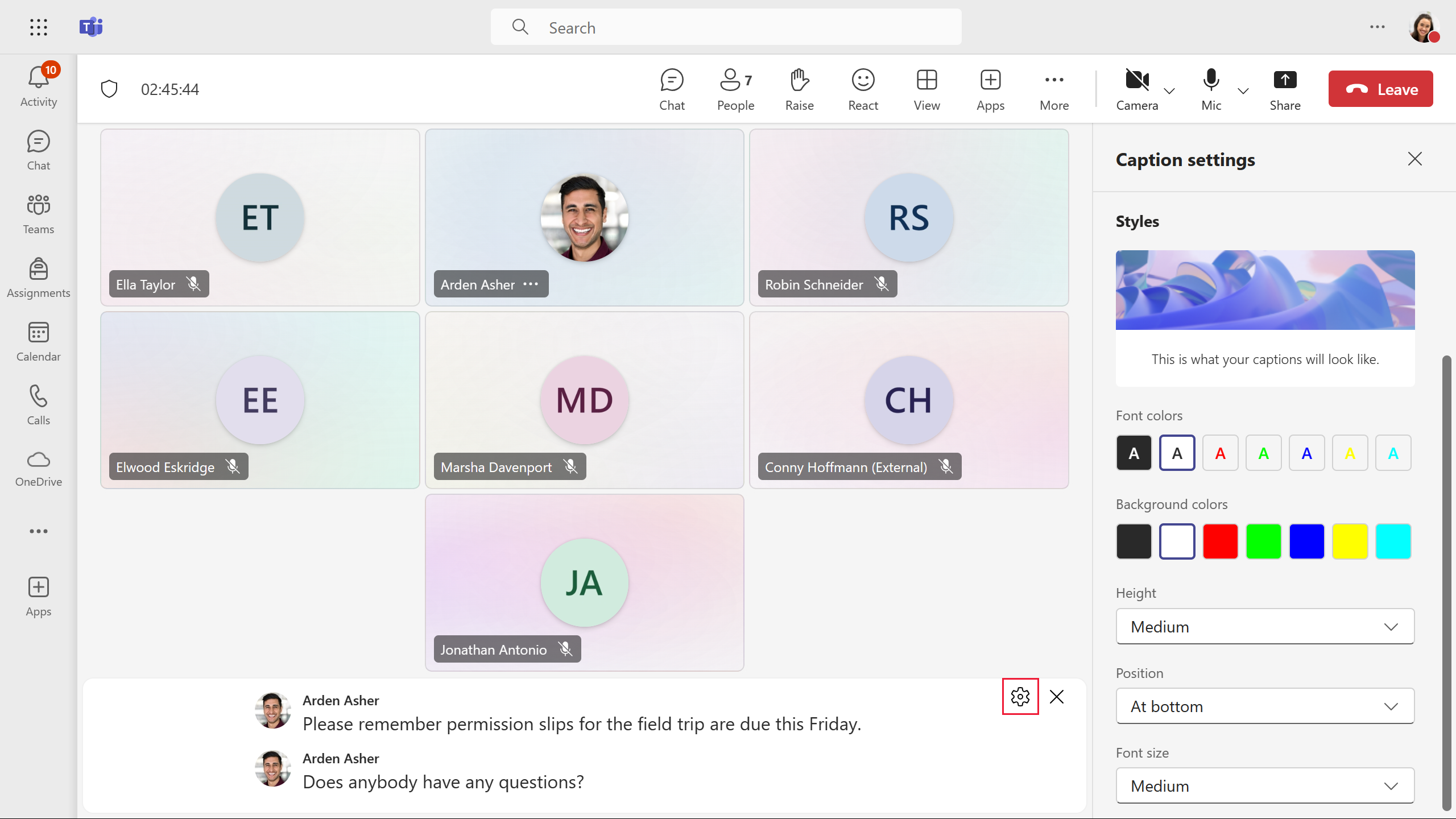
    In a Teams meeting, Teams can detect speech and generate real-time captions. It then adds live closed captions to the screen with speaker attribution. Monthly faculty meetings, class observation briefings, or any other staff meeting held in Teams can benefit from the live captioning feature.

    Screenshot of live captions in a Microsoft Teams meeting.
  • Start an instant meeting from Outlook or in Teams

    Sometimes educators don’t have time to schedule a meeting. A learner is absent, a guardian has a question about an upcoming event, or a colleague wants to discuss last-minute needs for tomorrow’s assembly. Outlook and Teams offer options to start a meeting immediately.

    Start an impromptu meeting

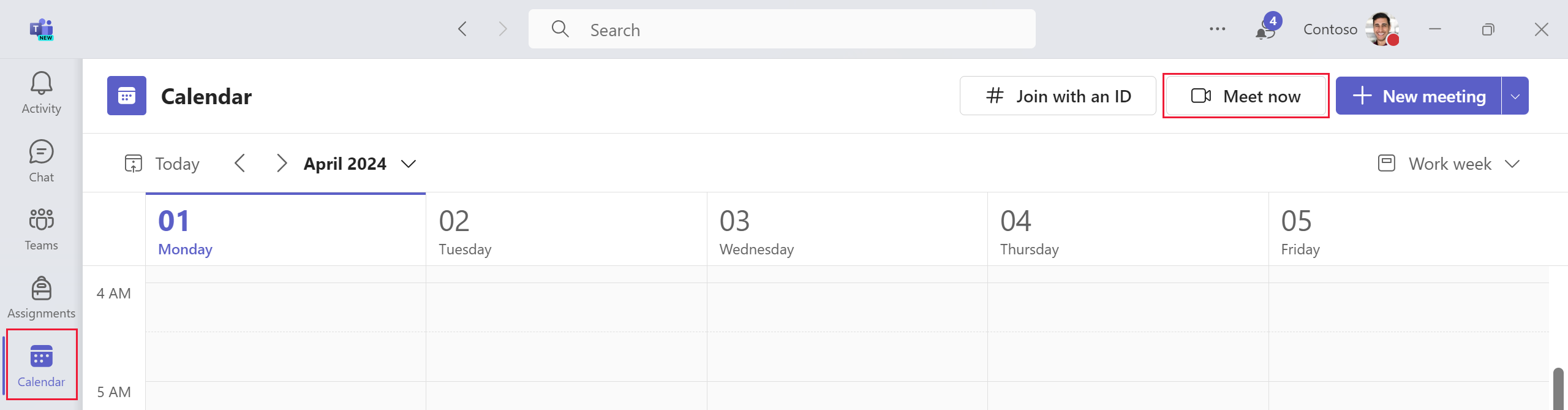
    Select Meet Now wherever it’s available to open the Teams meeting window.

    Screenshot of the Meet now button in the Calendar app in Microsoft Teams.

    Invite attendees to the meeting

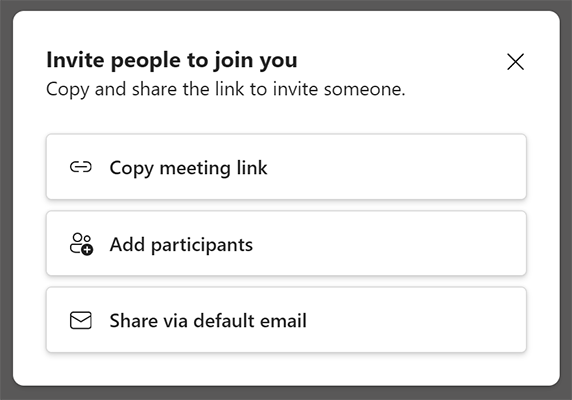
    There are three ways to invite others to join the impromptu meeting:

    • Copy the link to the meeting
    • Add participants
    • Share via their default email app
    Screenshot of the ways to invite attendees to a Teams meeting started with Meet now.
  • Schedule meetings in Outlook or in Teams

    Microsoft Teams is integrated into the rest of Microsoft Office. This integration makes it easy to create a meeting, whether it’s immediate or in the future. Both Microsoft Outlook and Teams offer options to schedule a meeting.

    Scheduling Teams meetings is quick and easy. All educators need to do is:

    1. Create a subject for the meeting.
    2. Add attendees.
    3. Find a common time that works for everyone using the scheduling assistant.

    Schedule meetings in Outlook

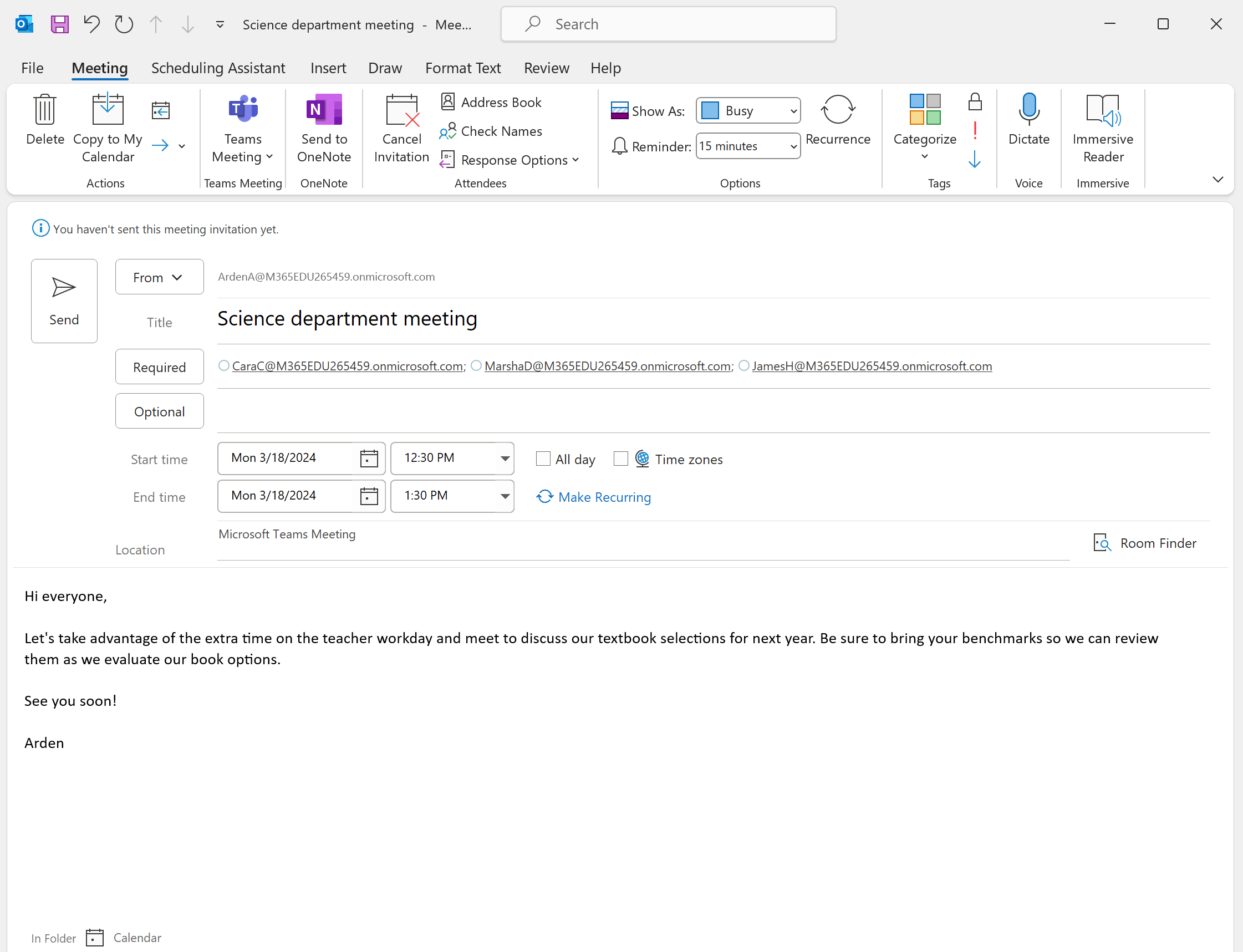
    The Teams Meeting option under the calendar tab in Outlook makes meeting creation as easy as sending an email. Think of the title of the meeting as the subject line of the email. Required attendees are like the “To” field, and optional attendees are like the cc field.

    Screenshot of the Teams meeting scheduler in Microsoft Outlook.
  • Teams meetings for learning

    Teams meetings aren’t only for remote learning. Educators can use Teams meetings in many ways. With learners and parents, educators can:

    • Host tutoring sessions
    • Meet with parents
    • Allow absent learners to join class remotely
    • Encourage collaboration among learners
    • Host virtual field trips
    • Invite guest speakers
    • Facilitate club meetings
  • Meet virtually with learners, families, and staff

    Microsoft Teams is a powerful tool for educators to stay connected to learners, families, and colleagues. Teams lets educators create, attend, and run meetings with many features that enhance engagement and collaboration.

    Instant polling

    Instant polling helps educators to get real-time feedback during a meeting. Educators can quickly choose from three binary option pairs—Yes or No, Thumbs Up Thumbs Down, Heart or Broken Heart—and send a poll question. Attendees can vote and see the animated results on their screen.

    Screenshot of a live poll in a Teams meeting.

    Microsoft Whiteboard

    Microsoft Whiteboard is a visual collaboration canvas that allows educators and learners to create and share rich content. Educators can design interactive whiteboards in advance and open them in a Teams meeting. They can also embed videos from various sources to provide multiple means of engagement for different learners.

    Screenshot of a whiteboard in a Teams meeting with contributions from attendees.

    Together mode

    Together mode in Teams meetings uses AI to place all the participants on a shared background, creating a sense of being in the same room. Together mode can help reduce fatigue, improve attention, and foster social connection in online classes.

  • Use client tools to query a warehouse

    Using SQL Server Management Studio (SSMS) to connect to a data warehouse in Fabric can facilitate your workflow, especially if you’re already familiar with the tool.

    Connect to your data warehouse

    SQL Server Management Studio provides a familiar interface for those who regularly work with SQL Server.

    Animated GIF showing how to generate the connection string for a data warehouse in Microsoft Fabric.

    Follow these steps to connect to data warehouse in Fabric from SSMS:

    1. Navigate to your Microsoft Fabric workspace.
    2. On your warehouse asset, select more options, then select Copy SQL connection string.
    3. Launch SQL Server Management Studio, and paste the SQL connection string copied into the Server name box, and provide the appropriate credentials for authentication.Screenshot showing how to connect to a warehouse using SQL Server Management Studio.
    4. After establishing a connection, SSMS shows the connected warehouse, along with its corresponding tables and views, all ready for querying.Screenshot showing the connected warehouse in SQL Server Management Studio.

    Authentication options

    In Microsoft Fabric, two types of authenticated users are supported through the SQL connection string:

    • Microsoft Entra ID (formerly Azure Active Directory) user principals, or user identities
    • Microsoft Entra ID (formerly Azure Active Directory) service principals
  • Use the SQL query editor

    The SQL query editor in Microsoft Fabric is a versatile tool that supports Transact-SQL (T-SQL), allowing you to create and run scripts to query your data warehouse. It also provides features such as IntelliSense and debugging to aid in the development process.

    T-SQL allows users, analysts and developers to manipulate the data stored in a warehouse.

    Launch a SQL query editor

    The SQL query editor isn’t just about querying; it’s about managing your data effectively. Whether you’re creating a new table, inserting rows into a table, granting objects permission or executing complex queries, the SQL query editor is designed to make these tasks seamless.

  • Aggregate measures by dimension attributes

    In most data analytics scenarios involving a data warehouse, the process typically revolves around aggregating numeric measures from fact tables based on attributes in dimension tables. Due to the structure of a star or snowflake schema, such aggregation queries depend on JOIN clauses to link fact tables with dimension tables. Also, they use aggregate functions and GROUP BY clauses to define the aggregation hierarchies.

    The following SQL query aggregates sales amounts by year and quarter from the FactSales and DimDate tables in a hypothetical data warehouse:

    SQLCopy

    SELECT  dates.CalendarYear,
            dates.CalendarQuarter,
            SUM(sales.SalesAmount) AS TotalSales
    FROM dbo.FactSales AS sales
    JOIN dbo.DimDate AS dates ON sales.OrderDateKey = dates.DateKey
    GROUP BY dates.CalendarYear, dates.CalendarQuarter
    ORDER BY dates.CalendarYear, dates.CalendarQuarter;
    
  • Query data

    Once the dimension and fact tables in a data warehouse are populated with data, you can use T-SQL to query these tables and perform data analysis. The Transact-SQL (T-SQL) syntax used for querying tables in a warehouse in Fabric closely resembles the SQL syntax used in SQL Server or Azure SQL Database. This familiarity allows for an easy transition for those already used to working with these platforms.